> ## Documentation Index
> Fetch the complete documentation index at: https://wb-21fd5541-evaltables.mintlify.site/llms.txt
> Use this file to discover all available pages before exploring further.
# Hugging Face
> Visualize and track Hugging Face model performance with W&B, logging hyperparameters, metrics, and GPU utilization.
export const ColabLink = ({url}) =>
Try in Colab
;
This tutorial shows you how to use the W\&B integration with [Hugging Face Transformers](https://github.com/huggingface/transformers) to automatically track training and evaluation metrics, hyperparameters, and system stats while fine-tuning a model. By following this tutorial, you learn how to visualize your model's performance through the [W\&B](https://wandb.ai/site) dashboard so you can compare experiments and iterate on your models with confidence.
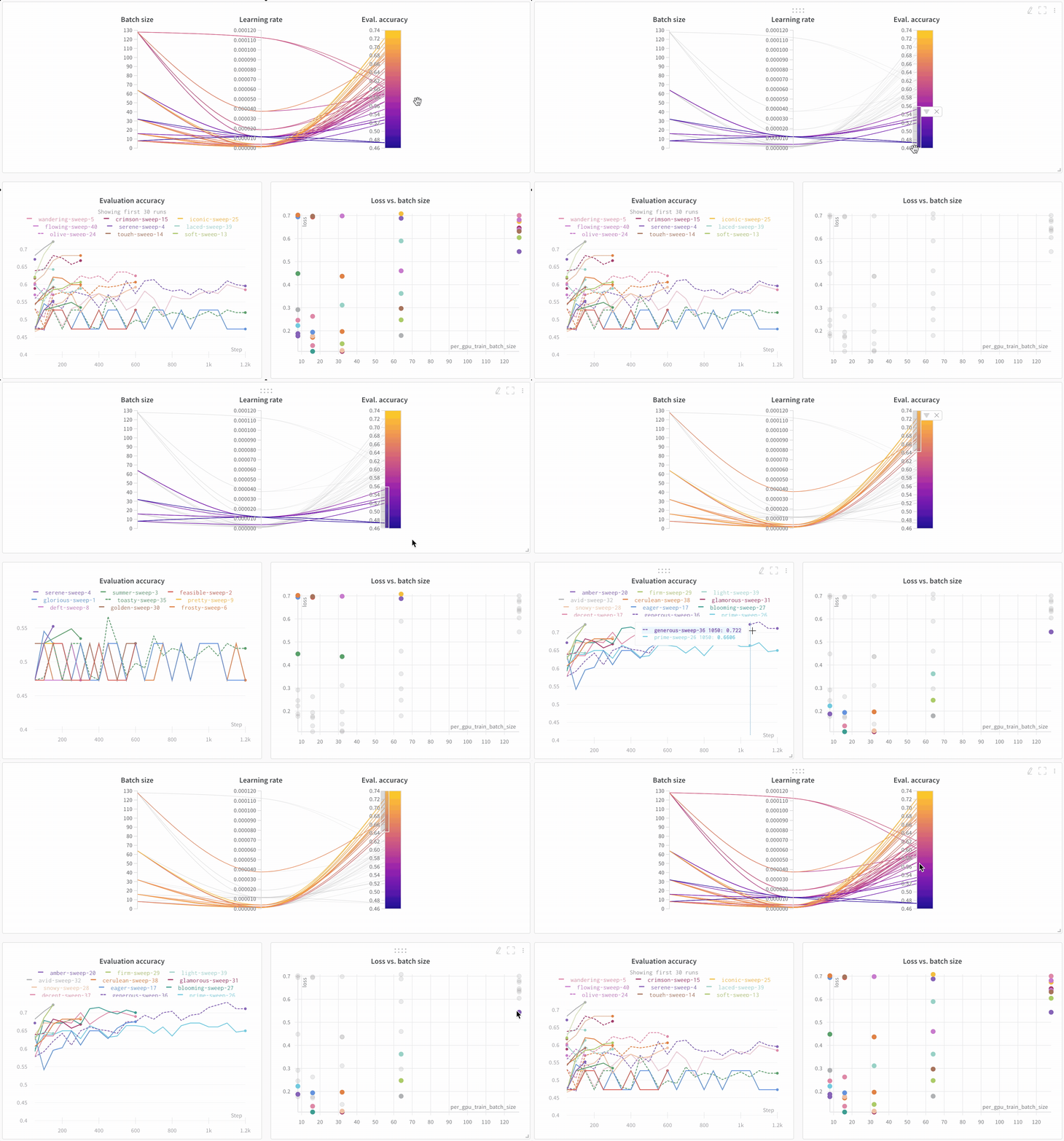
You can compare hyperparameters, output metrics, and system stats like GPU utilization across your models.
## Why use W\&B
* **Unified dashboard**: Central repository for all your model metrics and predictions.
* **Lightweight**: No code changes required to integrate with Hugging Face.
* **Accessible**: Free for individuals and academic teams.
* **Secure**: All projects are private by default.
* **Trusted**: Used by machine learning teams at OpenAI, Toyota, Lyft, and more.
W\&B works like GitHub for machine learning models. Save machine learning experiments to your private, hosted dashboard. Experiment with the confidence that W\&B saves all versions of your models, no matter where you run your scripts.
W\&B lightweight integrations work with any Python script. Sign up for a free W\&B account to start tracking and visualizing your models.
In the Hugging Face Transformers repository, W\&B has instrumented the Trainer to automatically log training and evaluation metrics to W\&B at each logging step.
Here's an in-depth look at how the integration works: [Hugging Face + W\&B Report](https://app.wandb.ai/jxmorris12/huggingface-demo/reports/Train-a-model-with-Hugging-Face-and-Weights-%26-Biases--VmlldzoxMDE2MTU).
## Install, import, and log in
This section sets up the environment you need to run the tutorial. Install the Hugging Face and W\&B libraries, and download the GLUE dataset and training script for this tutorial:
* [Hugging Face Transformers](https://github.com/huggingface/transformers): Natural language models and datasets.
* [W\&B](/): Experiment tracking and visualization.
* [GLUE dataset](https://gluebenchmark.com/): A language understanding benchmark dataset.
* [GLUE script](https://raw.githubusercontent.com/huggingface/transformers/refs/heads/main/examples/pytorch/text-classification/run_glue.py): Model training script for sequence classification.
```notebook theme={null}
!pip install datasets wandb evaluate accelerate -qU
!wget https://raw.githubusercontent.com/huggingface/transformers/refs/heads/main/examples/pytorch/text-classification/run_glue.py
```
```notebook theme={null}
# the run_glue.py script requires transformers dev
!pip install -q git+https://github.com/huggingface/transformers
```
Before continuing, you must [sign up for a free account](https://app.wandb.ai/login?signup=true). An account is required to send your run data to a W\&B dashboard.
## Add your API key
Authenticating with your API key links this notebook to your W\&B account so that runs are logged to your projects. After you sign up, run the next cell and click the link to get your API key and authenticate this notebook.
```python theme={null}
import wandb
wandb.login()
```
Optionally, you can set environment variables to customize what W\&B logs during training. For example, you can log both gradients and parameters by setting `WANDB_WATCH=all`. See the [Hugging Face integration guide](/models/integrations/huggingface/) for the full list of options.
```python theme={null}
# Optional: log both gradients and parameters
%env WANDB_WATCH=all
```
## Train the model
With the environment configured and authentication complete, you're ready to start a training run. Call the downloaded training script [`run_glue.py`](https://huggingface.co/transformers/examples.html#glue) and see training automatically get tracked to the W\&B dashboard. This script fine-tunes BERT on the Microsoft Research Paraphrase Corpus (pairs of sentences with human annotations indicating whether they're semantically equivalent).
```python theme={null}
%env WANDB_PROJECT=huggingface-demo
%env TASK_NAME=MRPC
!python run_glue.py \
--model_name_or_path bert-base-uncased \
--task_name $TASK_NAME \
--do_train \
--do_eval \
--max_seq_length 256 \
--per_device_train_batch_size 32 \
--learning_rate 2e-4 \
--num_train_epochs 3 \
--output_dir /tmp/$TASK_NAME/ \
--overwrite_output_dir \
--logging_steps 50
```
## Visualize results in the dashboard
After training starts, you can monitor metrics in real time. Click the link printed out by the previous cell, or go to [wandb.ai](https://app.wandb.ai) to see your results stream in live. The link to see your run in the browser appears after all the dependencies are loaded. Look for the following output: "**wandb**: View run at \[URL to your unique run]"
### Visualize model performance
Look across experiments, zoom in on findings, and visualize high-dimensional data.
### Compare architectures
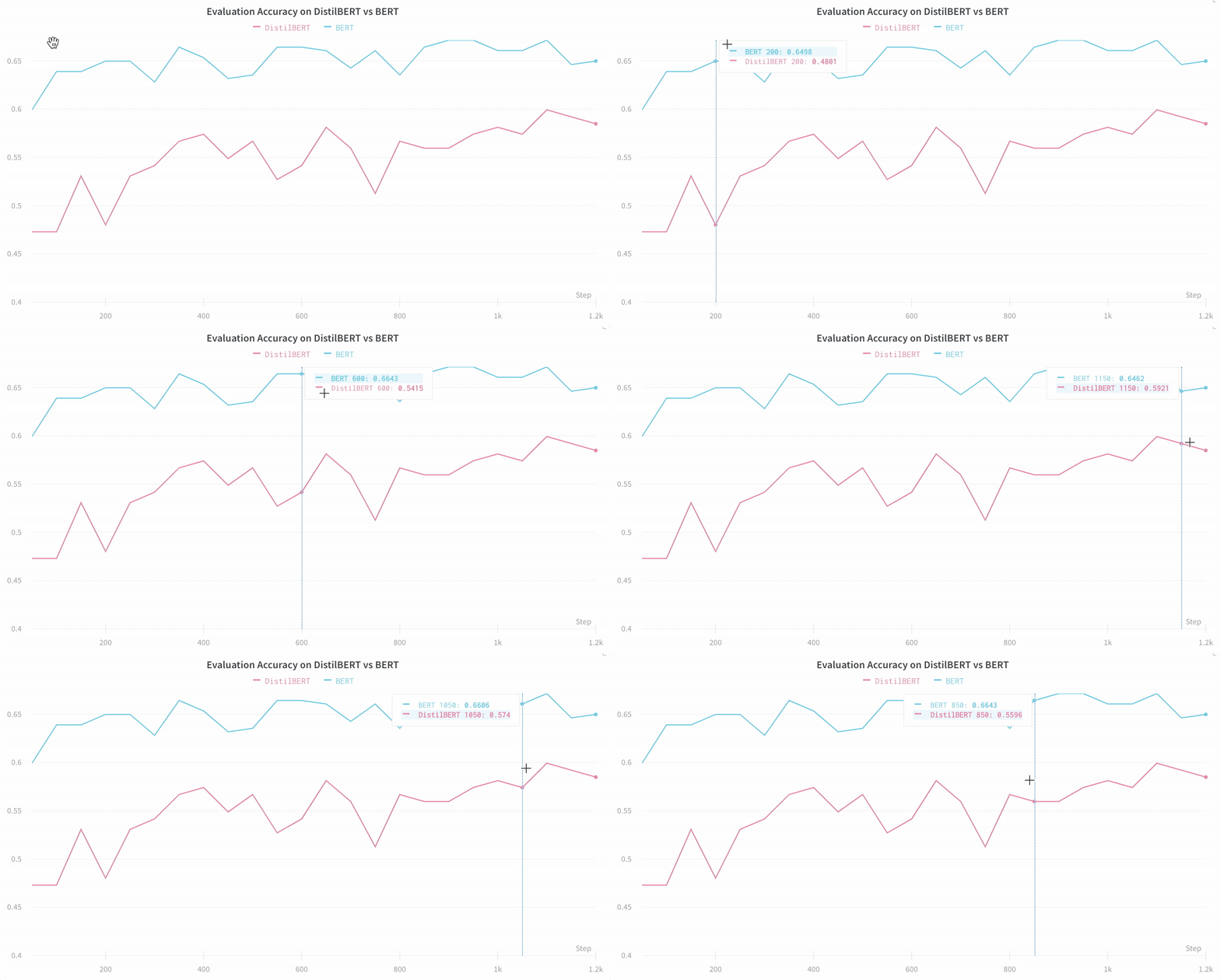
Here's an example comparing [BERT versus DistilBERT](https://app.wandb.ai/jack-morris/david-vs-goliath/reports/Does-model-size-matter%3F-Comparing-BERT-and-DistilBERT-using-Sweeps--VmlldzoxMDUxNzU). The automatic line plot visualizations show how different architectures affect the evaluation accuracy throughout training.
## Track key information by default
This section describes what W\&B captures automatically so you know what data is available in your dashboard without additional configuration. W\&B saves a new run for each experiment. Here's the information saved by default:
* **Hyperparameters**: W\&B saves settings for your model in Config.
* **Model metrics**: W\&B saves time series data of metrics streaming in to Log.
* **Terminal logs**: W\&B saves command line outputs and makes them available in a tab.
* **System metrics**: GPU and CPU utilization, memory, and temperature.
## Learn more
* [Video walkthroughs on YouTube](http://wandb.me/youtube)
 * **Unified dashboard**: Central repository for all your model metrics and predictions.
* **Lightweight**: No code changes required to integrate with Hugging Face.
* **Accessible**: Free for individuals and academic teams.
* **Secure**: All projects are private by default.
* **Trusted**: Used by machine learning teams at OpenAI, Toyota, Lyft, and more.
W\&B works like GitHub for machine learning models. Save machine learning experiments to your private, hosted dashboard. Experiment with the confidence that W\&B saves all versions of your models, no matter where you run your scripts.
W\&B lightweight integrations work with any Python script. Sign up for a free W\&B account to start tracking and visualizing your models.
In the Hugging Face Transformers repository, W\&B has instrumented the Trainer to automatically log training and evaluation metrics to W\&B at each logging step.
Here's an in-depth look at how the integration works: [Hugging Face + W\&B Report](https://app.wandb.ai/jxmorris12/huggingface-demo/reports/Train-a-model-with-Hugging-Face-and-Weights-%26-Biases--VmlldzoxMDE2MTU).
## Install, import, and log in
This section sets up the environment you need to run the tutorial. Install the Hugging Face and W\&B libraries, and download the GLUE dataset and training script for this tutorial:
* [Hugging Face Transformers](https://github.com/huggingface/transformers): Natural language models and datasets.
* [W\&B](/): Experiment tracking and visualization.
* [GLUE dataset](https://gluebenchmark.com/): A language understanding benchmark dataset.
* [GLUE script](https://raw.githubusercontent.com/huggingface/transformers/refs/heads/main/examples/pytorch/text-classification/run_glue.py): Model training script for sequence classification.
```notebook theme={null}
!pip install datasets wandb evaluate accelerate -qU
!wget https://raw.githubusercontent.com/huggingface/transformers/refs/heads/main/examples/pytorch/text-classification/run_glue.py
```
```notebook theme={null}
# the run_glue.py script requires transformers dev
!pip install -q git+https://github.com/huggingface/transformers
```
Before continuing, you must [sign up for a free account](https://app.wandb.ai/login?signup=true). An account is required to send your run data to a W\&B dashboard.
## Add your API key
Authenticating with your API key links this notebook to your W\&B account so that runs are logged to your projects. After you sign up, run the next cell and click the link to get your API key and authenticate this notebook.
```python theme={null}
import wandb
wandb.login()
```
Optionally, you can set environment variables to customize what W\&B logs during training. For example, you can log both gradients and parameters by setting `WANDB_WATCH=all`. See the [Hugging Face integration guide](/models/integrations/huggingface/) for the full list of options.
```python theme={null}
# Optional: log both gradients and parameters
%env WANDB_WATCH=all
```
## Train the model
With the environment configured and authentication complete, you're ready to start a training run. Call the downloaded training script [`run_glue.py`](https://huggingface.co/transformers/examples.html#glue) and see training automatically get tracked to the W\&B dashboard. This script fine-tunes BERT on the Microsoft Research Paraphrase Corpus (pairs of sentences with human annotations indicating whether they're semantically equivalent).
```python theme={null}
%env WANDB_PROJECT=huggingface-demo
%env TASK_NAME=MRPC
!python run_glue.py \
--model_name_or_path bert-base-uncased \
--task_name $TASK_NAME \
--do_train \
--do_eval \
--max_seq_length 256 \
--per_device_train_batch_size 32 \
--learning_rate 2e-4 \
--num_train_epochs 3 \
--output_dir /tmp/$TASK_NAME/ \
--overwrite_output_dir \
--logging_steps 50
```
## Visualize results in the dashboard
After training starts, you can monitor metrics in real time. Click the link printed out by the previous cell, or go to [wandb.ai](https://app.wandb.ai) to see your results stream in live. The link to see your run in the browser appears after all the dependencies are loaded. Look for the following output: "**wandb**: View run at \[URL to your unique run]"
### Visualize model performance
Look across experiments, zoom in on findings, and visualize high-dimensional data.
* **Unified dashboard**: Central repository for all your model metrics and predictions.
* **Lightweight**: No code changes required to integrate with Hugging Face.
* **Accessible**: Free for individuals and academic teams.
* **Secure**: All projects are private by default.
* **Trusted**: Used by machine learning teams at OpenAI, Toyota, Lyft, and more.
W\&B works like GitHub for machine learning models. Save machine learning experiments to your private, hosted dashboard. Experiment with the confidence that W\&B saves all versions of your models, no matter where you run your scripts.
W\&B lightweight integrations work with any Python script. Sign up for a free W\&B account to start tracking and visualizing your models.
In the Hugging Face Transformers repository, W\&B has instrumented the Trainer to automatically log training and evaluation metrics to W\&B at each logging step.
Here's an in-depth look at how the integration works: [Hugging Face + W\&B Report](https://app.wandb.ai/jxmorris12/huggingface-demo/reports/Train-a-model-with-Hugging-Face-and-Weights-%26-Biases--VmlldzoxMDE2MTU).
## Install, import, and log in
This section sets up the environment you need to run the tutorial. Install the Hugging Face and W\&B libraries, and download the GLUE dataset and training script for this tutorial:
* [Hugging Face Transformers](https://github.com/huggingface/transformers): Natural language models and datasets.
* [W\&B](/): Experiment tracking and visualization.
* [GLUE dataset](https://gluebenchmark.com/): A language understanding benchmark dataset.
* [GLUE script](https://raw.githubusercontent.com/huggingface/transformers/refs/heads/main/examples/pytorch/text-classification/run_glue.py): Model training script for sequence classification.
```notebook theme={null}
!pip install datasets wandb evaluate accelerate -qU
!wget https://raw.githubusercontent.com/huggingface/transformers/refs/heads/main/examples/pytorch/text-classification/run_glue.py
```
```notebook theme={null}
# the run_glue.py script requires transformers dev
!pip install -q git+https://github.com/huggingface/transformers
```
Before continuing, you must [sign up for a free account](https://app.wandb.ai/login?signup=true). An account is required to send your run data to a W\&B dashboard.
## Add your API key
Authenticating with your API key links this notebook to your W\&B account so that runs are logged to your projects. After you sign up, run the next cell and click the link to get your API key and authenticate this notebook.
```python theme={null}
import wandb
wandb.login()
```
Optionally, you can set environment variables to customize what W\&B logs during training. For example, you can log both gradients and parameters by setting `WANDB_WATCH=all`. See the [Hugging Face integration guide](/models/integrations/huggingface/) for the full list of options.
```python theme={null}
# Optional: log both gradients and parameters
%env WANDB_WATCH=all
```
## Train the model
With the environment configured and authentication complete, you're ready to start a training run. Call the downloaded training script [`run_glue.py`](https://huggingface.co/transformers/examples.html#glue) and see training automatically get tracked to the W\&B dashboard. This script fine-tunes BERT on the Microsoft Research Paraphrase Corpus (pairs of sentences with human annotations indicating whether they're semantically equivalent).
```python theme={null}
%env WANDB_PROJECT=huggingface-demo
%env TASK_NAME=MRPC
!python run_glue.py \
--model_name_or_path bert-base-uncased \
--task_name $TASK_NAME \
--do_train \
--do_eval \
--max_seq_length 256 \
--per_device_train_batch_size 32 \
--learning_rate 2e-4 \
--num_train_epochs 3 \
--output_dir /tmp/$TASK_NAME/ \
--overwrite_output_dir \
--logging_steps 50
```
## Visualize results in the dashboard
After training starts, you can monitor metrics in real time. Click the link printed out by the previous cell, or go to [wandb.ai](https://app.wandb.ai) to see your results stream in live. The link to see your run in the browser appears after all the dependencies are loaded. Look for the following output: "**wandb**: View run at \[URL to your unique run]"
### Visualize model performance
Look across experiments, zoom in on findings, and visualize high-dimensional data.
 ### Compare architectures
Here's an example comparing [BERT versus DistilBERT](https://app.wandb.ai/jack-morris/david-vs-goliath/reports/Does-model-size-matter%3F-Comparing-BERT-and-DistilBERT-using-Sweeps--VmlldzoxMDUxNzU). The automatic line plot visualizations show how different architectures affect the evaluation accuracy throughout training.
### Compare architectures
Here's an example comparing [BERT versus DistilBERT](https://app.wandb.ai/jack-morris/david-vs-goliath/reports/Does-model-size-matter%3F-Comparing-BERT-and-DistilBERT-using-Sweeps--VmlldzoxMDUxNzU). The automatic line plot visualizations show how different architectures affect the evaluation accuracy throughout training.
 ## Track key information by default
This section describes what W\&B captures automatically so you know what data is available in your dashboard without additional configuration. W\&B saves a new run for each experiment. Here's the information saved by default:
* **Hyperparameters**: W\&B saves settings for your model in Config.
* **Model metrics**: W\&B saves time series data of metrics streaming in to Log.
* **Terminal logs**: W\&B saves command line outputs and makes them available in a tab.
* **System metrics**: GPU and CPU utilization, memory, and temperature.
## Learn more
* [Video walkthroughs on YouTube](http://wandb.me/youtube)
## Track key information by default
This section describes what W\&B captures automatically so you know what data is available in your dashboard without additional configuration. W\&B saves a new run for each experiment. Here's the information saved by default:
* **Hyperparameters**: W\&B saves settings for your model in Config.
* **Model metrics**: W\&B saves time series data of metrics streaming in to Log.
* **Terminal logs**: W\&B saves command line outputs and makes them available in a tab.
* **System metrics**: GPU and CPU utilization, memory, and temperature.
## Learn more
* [Video walkthroughs on YouTube](http://wandb.me/youtube)