> ## Documentation Index
> Fetch the complete documentation index at: https://wb-21fd5541-evaltables.mintlify.site/llms.txt
> Use this file to discover all available pages before exploring further.
# TensorBoard
> Sync TensorBoard logs to W&B for cloud-hosted visualization, sharing, and centralized analysis alongside system metrics.
export const ColabLink = ({url}) =>
Try in Colab
;
W\&B supports embedded TensorBoard for W\&B Multi-tenant Cloud.
This page shows how to sync TensorBoard logs to W\&B so you can upload your TensorBoard logs to the cloud, share your results among colleagues and classmates, and keep your analysis in one centralized location. Use this integration if you already log to TensorBoard and want cloud-hosted visualization, sharing, and side-by-side comparison with W\&B system metrics.
## Get started
To enable TensorBoard syncing, set `sync_tensorboard=True` when you initialize a W\&B run. W\&B automatically uploads any TensorBoard events your training code emits.
```python theme={null}
import wandb
# Start a wandb run with `sync_tensorboard=True`
with wandb.init(project="my-project", sync_tensorboard=True) as run:
# Your training code using TensorBoard
...
```
Review an [example TensorBoard integration run](https://wandb.ai/rymc/simple-tensorboard-example/runs/oab614zf/tensorboard).
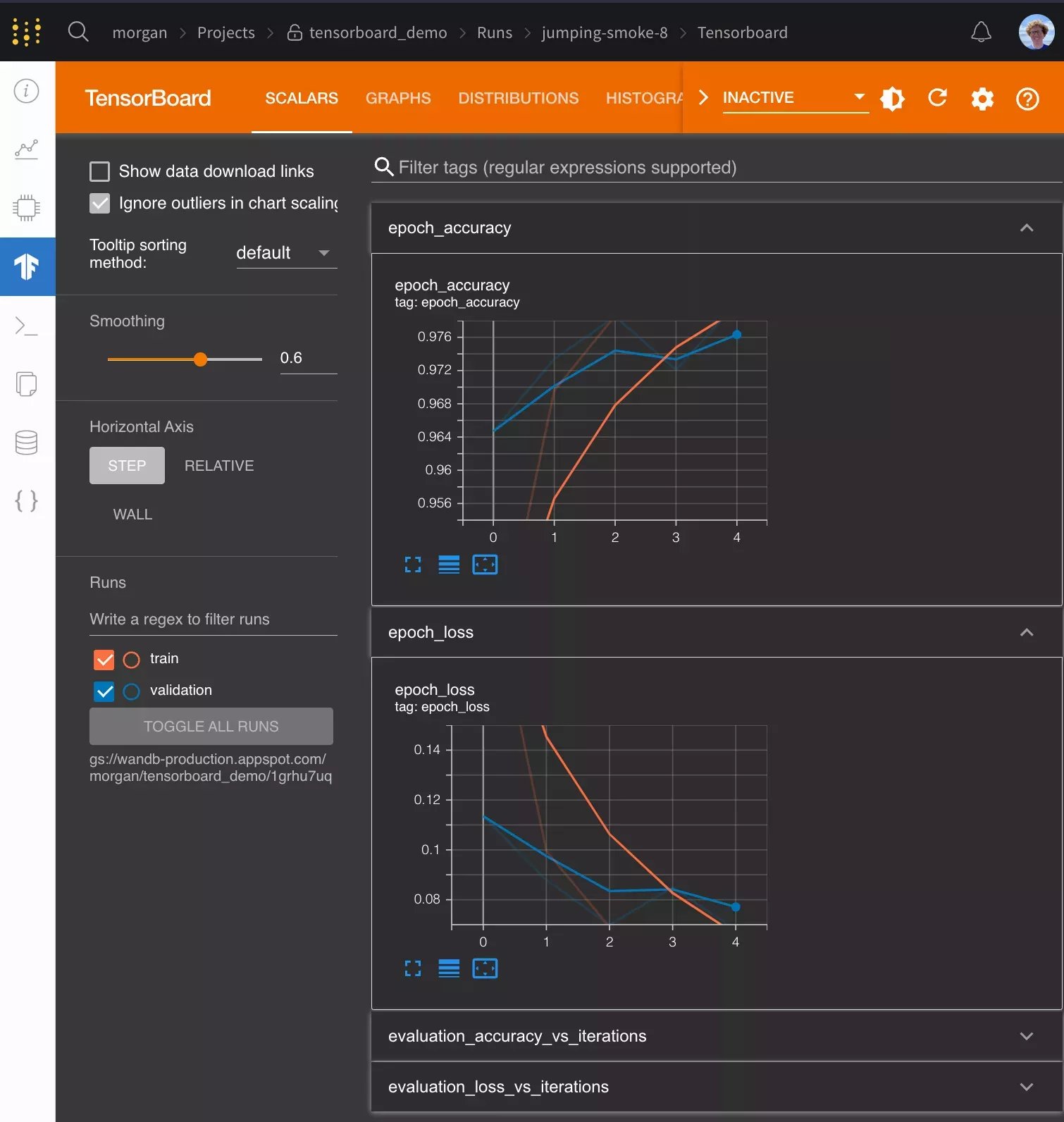
After your run finishes, you can access your TensorBoard event files in W\&B and visualize your metrics in native W\&B charts. W\&B also captures additional information such as system CPU or GPU utilization, the `git` state, and the terminal command the run used.
W\&B supports TensorBoard with all versions of TensorFlow. W\&B also supports TensorBoard 1.14 and later with PyTorch as well as TensorBoardX.
## Frequently asked questions
The following sections answer common questions about customizing the TensorBoard integration, including logging extra metrics, configuring the patch, syncing historical runs, and using notebook environments.
### How can I log metrics to W\&B that aren't logged to TensorBoard?
If you need to log additional custom metrics that aren't logged to TensorBoard, you can call `wandb.Run.log()` in your code: `run.log({"custom": 0.8})`.
Setting the step argument in `run.log()` is turned off when syncing TensorBoard. If you'd like to set a different step count, you can log the metrics with a step metric as:
`run.log({"custom": 0.8, "global_step": global_step})`
### How do I configure TensorBoard when I'm using it with `wandb`?
If you want more control over how W\&B patches TensorBoard, call `wandb.tensorboard.patch()` instead of passing `sync_tensorboard=True` to `wandb.init()`.
```python theme={null}
import wandb
wandb.tensorboard.patch(root_logdir="")
run = wandb.init()
# Finish the wandb run to upload the tensorboard logs to W&B (if running in Notebook)
run.finish()
```
To patch vanilla TensorBoard, pass `tensorboard_x=False` to this method. If you're using TensorBoard later than 1.14 with PyTorch, pass `pytorch=True` to patch it. Both of these options have sensible defaults depending on what versions of these libraries you've imported.
By default, W\&B also syncs the `tfevents` files and any `.pbtxt` files. This lets W\&B launch a TensorBoard instance on your behalf. You see a [TensorBoard tab](https://www.wandb.com/articles/hosted-tensorboard) on the run page. To turn off this behavior, pass `save=False` to `wandb.tensorboard.patch`.
```python theme={null}
import wandb
run = wandb.init()
wandb.tensorboard.patch(save=False, tensorboard_x=True)
# If running in a notebook, finish the wandb run to upload the tensorboard logs to W&B
run.finish()
```
You must call either `wandb.init()` or `wandb.tensorboard.patch()` before calling `tf.summary.create_file_writer()` or constructing a `SummaryWriter` from `torch.utils.tensorboard`.
### How do I sync historical TensorBoard runs?
If you have existing `tfevents` files stored locally and you would like to import them into W\&B, you can run `wandb sync log_dir`, where `log_dir` is a local directory containing the `tfevents` files.
### How do I use Google Colab or Jupyter with TensorBoard?
If you run your code in a Jupyter or Colab notebook, make sure to call `wandb.Run.finish()` at the end of your training. This finishes the `wandb` run and uploads the TensorBoard logs to W\&B so they can be visualized. This isn't necessary when you run a `.py` script, because `wandb` finishes automatically when a script finishes.
To run shell commands in a notebook environment, you must prepend a `!`, as in `!wandb sync directoryname`.
### How do I use PyTorch with TensorBoard?
If you use PyTorch's TensorBoard integration, you may need to manually upload the PyTorch Profiler JSON file.
```python theme={null}
with wandb.init(project="my-project", sync_tensorboard=True) as run:
run.save(glob.glob(f"runs/*.pt.trace.json")[0], base_path=f"runs")
```
### Can I sync tfevents files stored in the cloud?
`wandb` 0.20.0 and later supports syncing `tfevents` files stored in S3, GCS, or Azure. `wandb` uses the default credentials for each cloud provider. The following table lists the command to configure credentials and the expected logging directory format for each provider:
| Cloud provider | Credentials | Logging directory format |
| -------------- | --------------------------------------- | ------------------------------------- |
| S3 | `aws configure` | `s3://bucket/path/to/logs` |
| GCS | `gcloud auth application-default login` | `gs://bucket/path/to/logs` |
| Azure | `az login`[^1] | `az://account/container/path/to/logs` |
[^1]: You must also set the `AZURE_STORAGE_ACCOUNT` and `AZURE_STORAGE_KEY` environment variables.
 ## Get started
To enable TensorBoard syncing, set `sync_tensorboard=True` when you initialize a W\&B run. W\&B automatically uploads any TensorBoard events your training code emits.
```python theme={null}
import wandb
# Start a wandb run with `sync_tensorboard=True`
with wandb.init(project="my-project", sync_tensorboard=True) as run:
# Your training code using TensorBoard
...
```
Review an [example TensorBoard integration run](https://wandb.ai/rymc/simple-tensorboard-example/runs/oab614zf/tensorboard).
After your run finishes, you can access your TensorBoard event files in W\&B and visualize your metrics in native W\&B charts. W\&B also captures additional information such as system CPU or GPU utilization, the `git` state, and the terminal command the run used.
## Get started
To enable TensorBoard syncing, set `sync_tensorboard=True` when you initialize a W\&B run. W\&B automatically uploads any TensorBoard events your training code emits.
```python theme={null}
import wandb
# Start a wandb run with `sync_tensorboard=True`
with wandb.init(project="my-project", sync_tensorboard=True) as run:
# Your training code using TensorBoard
...
```
Review an [example TensorBoard integration run](https://wandb.ai/rymc/simple-tensorboard-example/runs/oab614zf/tensorboard).
After your run finishes, you can access your TensorBoard event files in W\&B and visualize your metrics in native W\&B charts. W\&B also captures additional information such as system CPU or GPU utilization, the `git` state, and the terminal command the run used.